Back in college, a student editor pieced together a short documentary using just a laptop and free editing software. The moment she dragged her first video clip into a horizontal strip at the bottom of the screen, her editing journey began. That strip? It was the timeline — the central hub of every video editing project.
Defining the Timeline
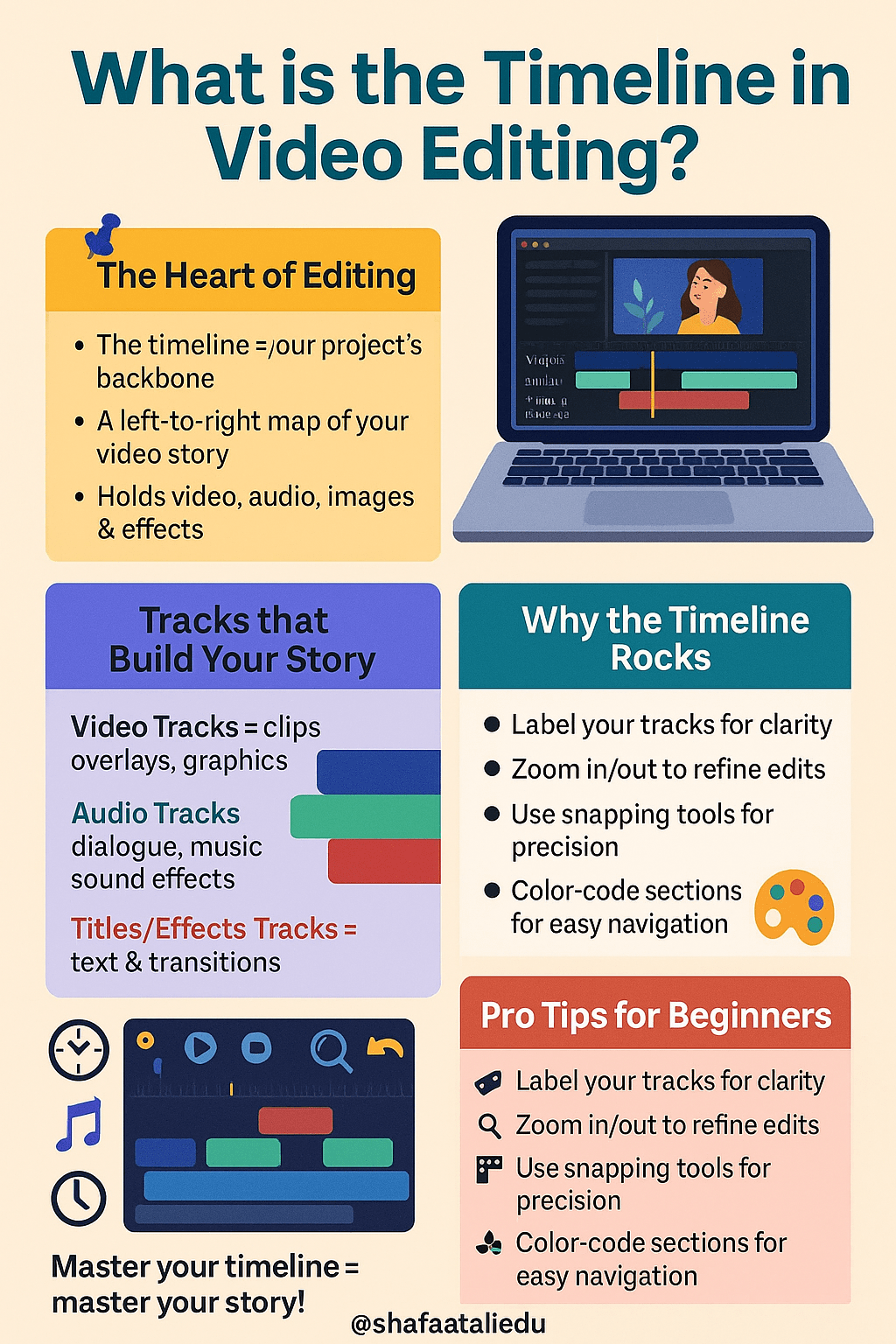
In video editing, the timeline is where all the magic happens. It’s the visual representation of your project, laid out from left to right, showing how your video unfolds over time. Think of it as a digital storyboard where video, audio, images, and effects are arranged in a sequence.
Most timelines are divided into multiple tracks:
- Video Tracks for footage, overlays, and graphics
- Audio Tracks for dialogue, music, and sound effects
- Titles/Effects Tracks for transitions or visual elements
Everything you add to your project appears here, and the order in which you layer these elements determines what the viewer sees and hears.
Key Functions of the Timeline
1. Sequence Control
The timeline allows precise control over when each clip appears, how long it stays, and how it transitions in or out.
2. Layering Content
Need a logo to appear over a video? Place it on a higher track. Want music under your narration? Drop it on a lower audio track.
3. Real-Time Feedback
As you edit, the timeline gives you a real-time preview of your changes. This makes it easier to refine timing, sync audio, or adjust effects.
4. Non-Linear Editing
Unlike old-school tape editing, the timeline supports non-linear workflows. You can jump to any part, make changes, and rearrange clips freely.
Timeline Tips for Beginners
- Label your tracks to stay organized.
- Zoom in/out to fine-tune edits or get a bird’s-eye view.
- Use snapping tools to align clips perfectly.
- Color-code sections for easier navigation during complex projects.
Essential Insights
The timeline is the backbone of any editing project. Whether you’re making a YouTube vlog or a feature film, mastering the timeline helps you tell your story clearly and efficiently. It’s not just a tool — it’s your creative canvas.

Leave a comment