If you are managing a WordPress site, you will often need to add small code snippets—whether it’s for tracking scripts, design tweaks, or custom features. The WPCode plugin makes this process much easier by providing a clean and safe way to insert code without editing theme files manually.

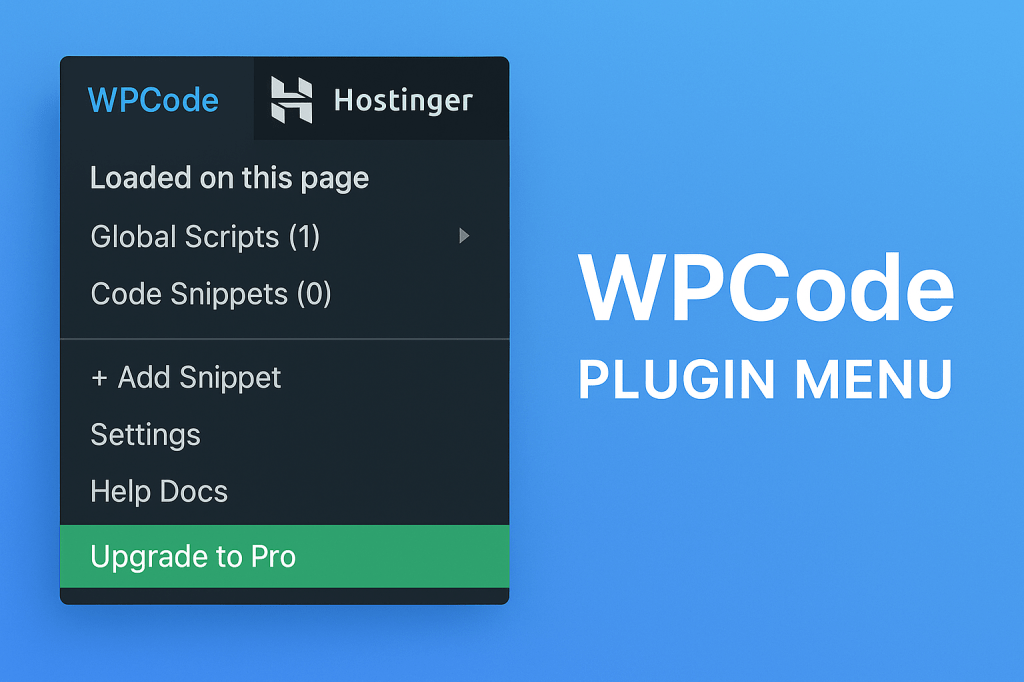
The image above shows the WPCode menu, and in this article, we’ll break down what each option means and how you can use it to improve your website. This guide is simple, beginner-friendly, and will help you get comfortable using WPCode even if you’ve never touched code before.
What Is WPCode?
WPCode is a WordPress plugin that allows you to safely add small pieces of code to your website. Instead of placing code manually inside functions.php or theme files, WPCode gives you an easy dashboard to manage all your snippets.
It helps with tasks like:
- Adding Google Analytics
- Inserting header or footer scripts
- Creating custom functions
- Adding CSS or JavaScript
- Enabling useful features without plugins
Understanding the WPCode Menu Options
Let’s explore the items shown in the WPCode dropdown from the image.
1. Loaded on This Page
This section shows the scripts or snippets currently active on the page you are viewing in WordPress. It’s helpful because you can instantly see which code snippets are running without searching through your list.
For example:
If you inserted a header script for Google Tag Manager, you will see it listed here when visiting your homepage in the backend.
2. Global Scripts
This option shows all globally active scripts. These are codes that run on every page of your website.
Common uses include:
- Header verification tags
- Tracking codes
- Sitewide CSS
- JavaScript frameworks
If you need a code to run everywhere, this is where you manage it.
3. Code Snippets
This section contains your custom snippets. These could be:
- PHP functions
- HTML blocks
- JavaScript
- CSS
Even if you have multiple snippets, WPCode keeps them organized so you can enable, disable, or edit them easily.
4. Add Snippet
This is one of the most important buttons. When you click + Add Snippet, WPCode lets you create a new piece of code. It also gives you ready-made snippet templates, such as:
- Disable XML-RPC
- Allow SVG uploads
- Remove WordPress version number
This makes it useful even for beginners.
5. Settings
Inside Settings, you can configure how the plugin behaves. This includes:
- Where snippets are stored
- How they are executed
- Safe mode options
- Error protection
If you ever accidentally add broken code, WPCode can automatically disable it—saving your site from crashing.
6. Help Docs
This menu links to official documentation, helping you learn more about how to use the plugin. Beginners can find examples, snippets, and troubleshooting tips here.
7. Upgrade to Pro
WPCode also has a Pro version that unlocks advanced features like:
- More snippet types
- Conditional logic (run code only on certain pages)
- Cloud snippet library
- Priority support
If you run a large site or manage multiple sites, upgrading may be useful.
Why WPCode Is Helpful for Beginners
Even if you’re not a developer, WPCode makes website customization simple. It protects your site from errors, organizes your snippets, and keeps everything in one place.
Benefits include:
- No need to edit theme files
- Easy to turn snippets on or off
- Beginner-friendly interface
- Safe code execution
- Access to pre-built snippets
For example, if you want to add Google Analytics without installing a heavy plugin, simply paste the script into WPCode, select Header, and click Save.
Key Takeaways
The WPCode menu shown in the image is simple but powerful. Each option is designed to help you manage scripts safely and efficiently. Whether you’re a beginner or an advanced user, WPCode makes adding custom functionality to your WordPress site much easier.

Leave a comment