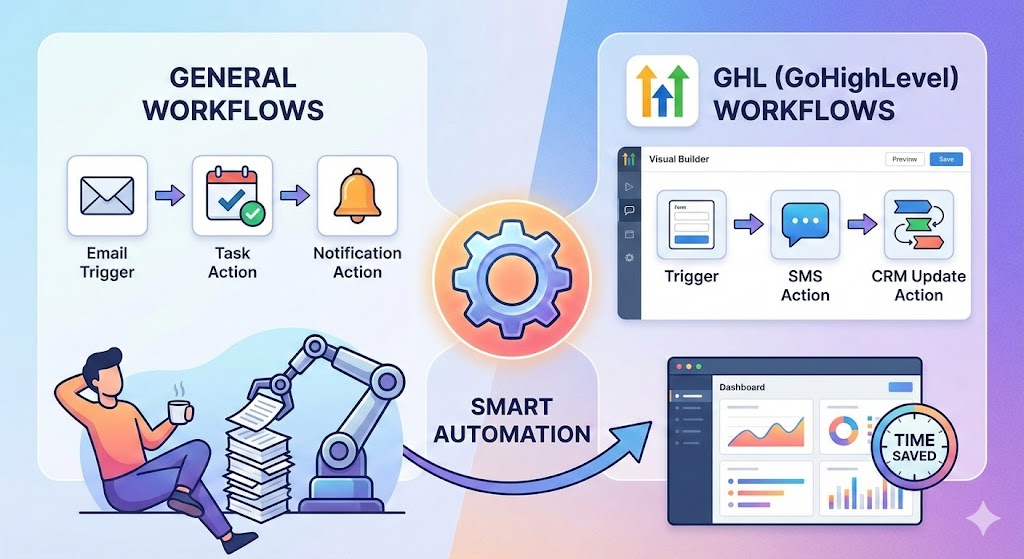
Workflows are one of the simplest yet most powerful tools you can use to automate tasks, save time, and keep your processes consistent. Whether you’re using GoHighLevel (GHL) or any other system, workflows help you run actions automatically based on triggers—so you don’t have to do everything manually.
Below is a clear, beginner-friendly guide to understanding workflows and using them effectively.
What Are Workflows?
Workflows are automated sequences of tasks that run based on certain conditions. Think of a workflow as a chain reaction: something happens → your system does one or more actions automatically.
A simple everyday example
Imagine you receive a new email from a client.
A workflow could:
- Automatically send a reply,
- Add the client to a list,
- Notify you by SMS,
- Create a task to follow up.
All of this happens without you lifting a finger.
Why Workflows Matter
Here’s why workflows are extremely valuable:
- Save time: You automate repeated tasks.
- Reduce human error: The system never forgets steps.
- Improve customer experience: Faster and consistent responses.
- Scale your business: You don’t need extra manpower for basic tasks.
- Stay organized: Everything follows a predictable process.
Types of Workflows (General Business Use)
Workflows can be set up for almost anything. Some common examples include:
1. Lead Management
- Send an email once a new lead signs up.
- Assign leads to sales team members automatically.
2. Customer Onboarding
- Send welcome messages.
- Share login details or next steps.
- Add them to an onboarding sequence.
3. Task Automation
- Move a task to “In Progress” when someone clicks a link.
- Set reminders or deadlines automatically.
4. Sales and Follow-Ups
- Create drip campaigns.
- Send follow-up emails after a call.
5. Internal Notifications
- Notify team members when a client books an appointment.
- Create Slack or email alerts.
What Are Workflows in GHL (GoHighLevel)?
In GoHighLevel, workflows are one of the most important features. They allow you to automate:
- Messaging (SMS, email, voicemail drops)
- Pipelines
- Appointment reminders
- Review requests
- Lead nurturing campaigns
- Internal notifications
- Tagging and segmentation
- CRM updates
- And much more
GHL workflows are visual and drag-and-drop, which makes them great for beginners.
How to Use Workflows in GHL (Step-by-Step)
Step 1: Go to Automations
Inside your GHL account:
- Go to Automation
- Click Workflows
- Choose “Create Workflow”
Step 2: Choose a Trigger
A trigger is the event that starts your workflow.
Some examples:
- Form submitted
- Appointment booked
- Tag added
- Pipeline stage changed
- Birthday
- Purchase made
Example: When a lead fills your “Free Consultation Form.”
Step 3: Add Actions
After selecting the trigger, add the actions your workflow should perform.
Common actions in GHL:
- Send SMS
- Send email
- Add tag
- Assign user
- Create opportunity
- Wait for a time delay (e.g., 1 day)
- Move to another workflow
Example:
A lead books an appointment → GHL sends a confirmation SMS → waits 1 day → sends a reminder SMS.
Step 4: Add Conditions (Optional)
Conditions help you control the flow.
Examples:
- If/Else: If the lead clicked the link → do X; else → do Y
- Filters: Only send email if contact has a specific tag
Step 5: Test Your Workflow
Before activating:
- Use the Test Contact feature
- Check each step carefully
- Make sure no unnecessary loops or errors exist
Step 6: Turn It On
Once the workflow is complete and tested, simply activate it.
Best Practices for Using Workflows
✔ Keep workflows simple
Break large processes into smaller workflows.
✔ Name everything clearly
Use names like “New Lead Nurture Sequence — 2025.”
✔ Use tags wisely
Tags help you control workflow logic and prevent contacts from entering a workflow multiple times.
✔ Test before going live
Always run test contacts first.
✔ Review analytics
Understand which workflows perform best so you can improve them.
Key Takeaways
Workflows are the backbone of smart automation. Whether you’re using GoHighLevel or any other tool, they help you run your business smoothly, respond faster, and scale without extra effort. Start with simple workflows and gradually build more advanced automation as you grow.

Leave a comment