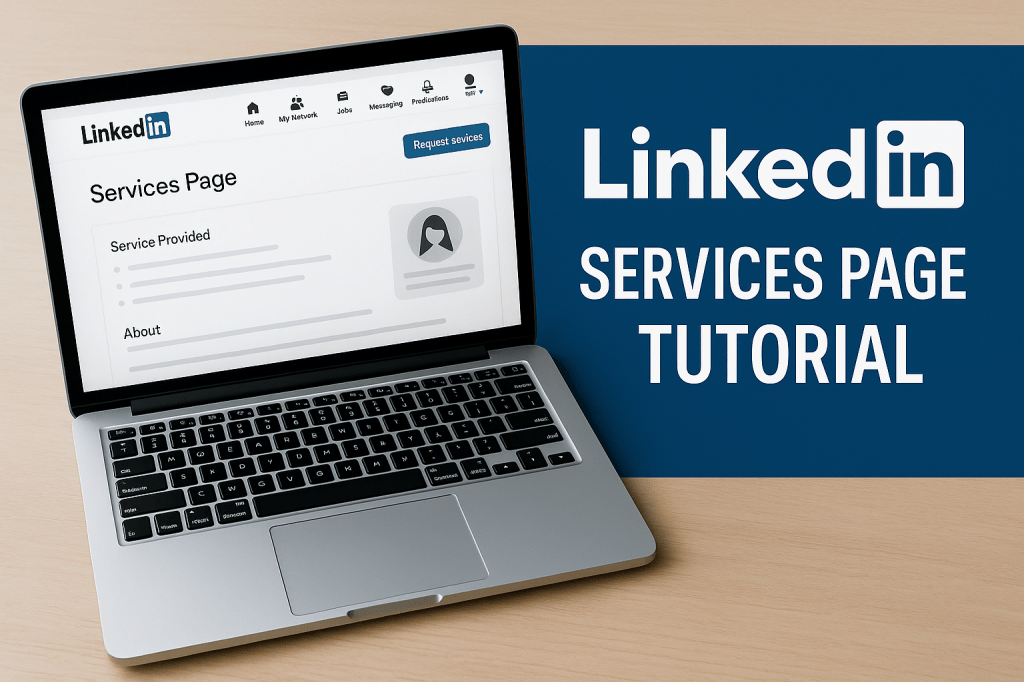
LinkedIn has continued improving how professionals and businesses showcase their services — and in 2026, the LinkedIn Services Page remains one of the best ways to attract clients directly on the platform. In this article, you’ll learn what the Services Page is, how to set it up, how service requests work, whether you need LinkedIn Premium, and how much Premium plans currently cost in 2026.
What Is a LinkedIn Services Page?
A LinkedIn Services Page is a free online showcase on LinkedIn where professionals and companies can list the services they offer — like consulting, design, writing, marketing, or coaching — and get service requests from potential clients.
Here’s what a Services Page does:
- Displays your offered services with descriptions
- Allows clients to find you based on service type, location, and language
- Lets people send you project requests directly
- Can show reviews from previous clients
- Helps you appear in search results when people look for providers
And a key point: Service Pages are free to create.
How to Set Up Your LinkedIn Services Page
There are two main ways to offer services on LinkedIn:
- From your personal profile
- From a LinkedIn Company Page
A. On Your Personal Profile
To add services to your personal LinkedIn profile:
- Sign in and click the Me icon.
- Click View profile.
- Choose Add profile section.
- Select Add services.
- Add your service categories — you can list up to 10.
- Add a description explaining what you offer.
- Choose your work location and whether you offer remote services.
- Add pricing info if you want, or choose “Contact for pricing.”
- Save your Services Page.
B. On Your LinkedIn Company Page
If you manage a Company Page:
- Go to your company page as a Super Admin.
- Use the Add services option.
- Enter your service details.
Note: Only companies with 500 employees or fewer can add services directly to their Company Page.
How Do You Know When Someone Requests Your Services?
Once your Services Page is active:
- A Request Services button appears on your profile or company page.
- Clients click that button to send a service inquiry or project request.
- You receive a LinkedIn notification and an email.
- All requests appear in your Services dashboard, where you can respond, decline, or ask for more details.
LinkedIn makes it very clear when someone reaches out, so you won’t miss a request.
Do You Need LinkedIn Premium for the Services Page?
No — you do NOT need LinkedIn Premium to use or receive service requests through the Services Page.
Everything needed to list your services and get clients is included in the free version.
However, LinkedIn Premium can improve your lead generation because it offers:
- More profile visibility
- Better search exposure
- Extra profile insights
- The ability for others to message you more easily
- More analytics and business insights
Premium is optional but useful for professionals who want to scale their presence.
LinkedIn Premium Plans & Pricing (2026)
LinkedIn Premium prices vary slightly by region, but the most common pricing for 2026 is:
Individual Premium Plans
| Plan | Monthly Price | Annual Price (Approx.) |
|---|---|---|
| Premium Career | ~$29.99 | ~$239.88 |
| Premium Business | ~$59.99 | ~$575.88 |
| Sales Navigator Core | ~$99.99 | ~$959.88 |
| Sales Navigator Advanced | ~$149.99 | ~$1,300 |
| Recruiter Lite | ~$170 | ~$1,680 |
Each plan helps different types of users: job seekers, business owners, sales teams, and recruiters.
Most Premium tiers also offer a 1-month free trial, so you can test the features before paying.
Concluding Thoughts
LinkedIn’s Services Page is a free and powerful tool for professionals and small businesses to showcase services, attract clients, and grow their network. While Premium isn’t required, it can enhance your visibility and help you reach more potential customers. With service requests, notifications, and simple setup tools, it’s easier than ever to offer your expertise on LinkedIn in 2026.

Leave a comment