If you’re running shopping pins or product catalogs on Pinterest and suddenly see Warning 159, you’re not alone. This is a very common issue—and fortunately, it’s easy to fix once you understand what Pinterest is asking for.
In this guide, I’ll break everything down in simple terms so you can resolve the warning quickly and restore full visibility for your products.
What Is Pinterest Warning 159?
Warning 159 appears when condition values are missing or incorrectly formatted in your product data.
In plain English, Pinterest doesn’t know whether your products are:
- New
- Used
- Refurbished
Because of this uncertainty, Pinterest may:
- Limit how often your products appear in search results
- Reduce recommendations
- Exclude items from shopping placements
That’s why the warning says visibility may be limited.
Why Condition Values Matter on Pinterest
Pinterest treats shopping pins like a product marketplace, similar to Google Shopping.
Condition values help Pinterest:
- Match your products to the right buyers
- Show accurate pricing and expectations
- Maintain trust in the shopping experience
Even if all your products are brand new, Pinterest still requires that information to be clearly stated.
Accepted Condition Values (Very Important)
Pinterest only accepts three exact values:
newusedrefurbished
⚠️ These values must be:
- Lowercase
- Spelled exactly as shown
- Applied to every product that requires a condition field
Anything else—like “brand new”, “unused”, or “like new”—will trigger Warning 159.
Step-by-Step: How to Fix Warning 159
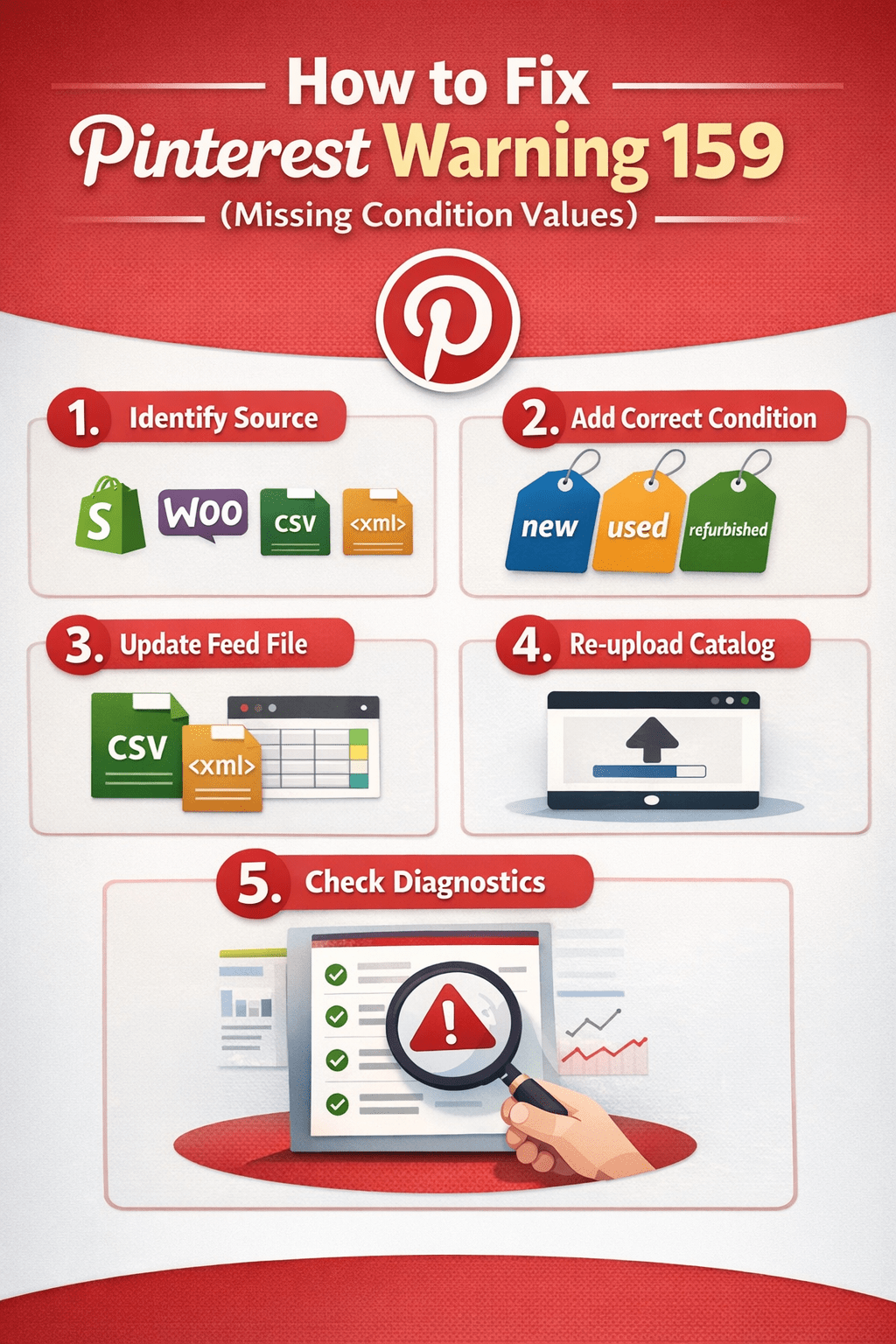
1. Identify Where Your Products Are Coming From
First, determine how your product catalog is connected to Pinterest. Common sources include:
- Shopify
- WooCommerce
- CSV or XML feed
- Manual upload
- Google Merchant Center sync
Once you know the source, fixing the issue becomes straightforward.
2. Fixing Warning 159 on Shopify
If you’re using Shopify, this is usually the easiest fix.
What to do:
- Go to Shopify Admin
- Open a product
- Scroll to Product Organization or Product Details
- Look for Condition (some themes hide this)
- Set it to New
- Save
💡 If the condition field doesn’t appear, install or update the Pinterest sales channel—it often auto-maps condition as new.
3. Fixing Warning 159 on WooCommerce
WooCommerce users typically need a plugin or feed tool.
Recommended approach:
- Use a product feed plugin (like a Pinterest or Google feed plugin)
- Locate the condition attribute
- Set a default value of
new - Apply it to all products
- Regenerate and resubmit the feed
This ensures Pinterest receives the correct format every time.
4. Fixing Warning 159 in CSV or XML Feeds
If you upload products manually using a feed file, this step is critical.
You must add a condition column or attribute.
Example (CSV):
conditionnewExample (XML):
<condition>new</condition>Make sure:
- Every product has a condition value
- No cells are left blank
- No extra spaces or capital letters are used
5. Update and Re-upload Your Catalog
After making changes:
- Re-upload your feed or sync your store
- Go to Pinterest → Catalogs → Diagnostics
- Wait 24–48 hours for Pinterest to reprocess your data
The warning won’t disappear instantly, so don’t panic.
Common Mistakes That Keep the Warning Active
Avoid these frequent errors:
- Using “Brand New” instead of
new - Capitalizing values (
Newinstead ofnew) - Leaving condition blank for some products
- Applying condition to some items but not all
- Forgetting to resubmit the feed
Pinterest’s system is strict—but predictable.
How to Confirm the Fix Worked
Once Pinterest reprocesses your catalog:
- Warning 159 should disappear or move to “Resolved”
- Your products will regain full eligibility
- Shopping pins may start performing better
If the warning persists after 48 hours, recheck formatting—it’s almost always a typo or missing field.
Key Takeaways
- Warning 159 means Pinterest can’t identify product condition
- Pinterest only accepts:
new,used, orrefurbished - Formatting must be exact and lowercase
- The fix depends on how your product catalog is connected
- Resubmitting your feed is essential
When handled correctly, this warning is one of the easiest Pinterest issues to resolve—and fixing it can noticeably improve your product visibility.
If you’re serious about turning platforms like Pinterest into a consistent income stream, learning how product data, communication, and positioning work together is essential. I regularly cover these skills in my books on business, e-commerce, and personal growth available on Apple Books.

Leave a comment