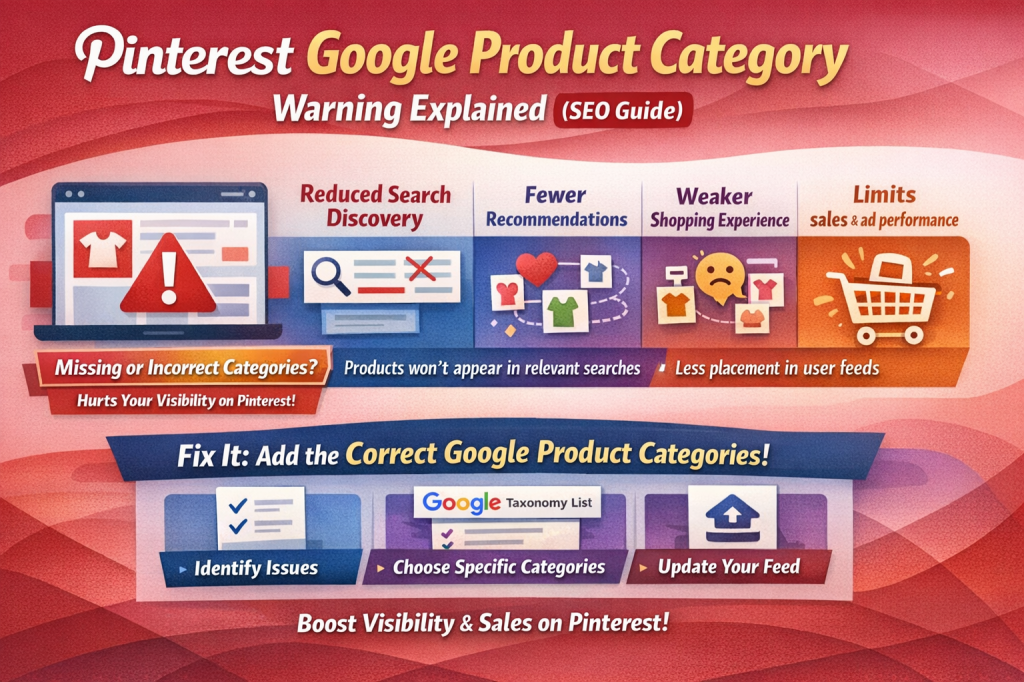
If you manage a shop or product catalog on Pinterest, you may have recently seen a warning like this:
“Some google_product_category values are missing, which may limit visibility in recommendations, search results and shopping experiences.”
At first glance, this message can feel technical and confusing—especially if your products are already live and getting impressions. But this warning is important, and understanding it can directly impact how well your products perform on Pinterest Shopping.
This guide breaks everything down in simple terms: what the warning means, why it matters, and exactly what you should do to fix it.
What Is the Google Product Category on Pinterest?
The google_product_category (GPC) is a standardized classification system created by Google to describe what type of product you’re selling.
Think of it like placing your product on the correct shelf in a massive global store.
For example:
- Clothing → Shoes → Sneakers
- Electronics → Mobile Phones → Smartphones
- Home & Garden → Furniture → Chairs
Pinterest uses this category data to understand your products, even though the system is called Google Product Category.
Why Pinterest Shows This Warning
Pinterest displays this warning when:
- One or more products in your catalog don’t have a category
- The category exists but is not formatted correctly
- The category does not match the regional GPC taxonomy
- Your feed includes partial or outdated values
Even if only some items are affected, Pinterest flags the entire catalog to protect shopping quality.
Why Missing Google Product Categories Hurt Visibility
This warning is not just informational—it directly affects performance.
Here’s how missing categories can limit your reach:
1. Reduced Discovery in Search
Pinterest relies on product categories to decide when and where to show your items. Without them, your products may not appear in:
- Relevant keyword searches
- Related product suggestions
- Shopping surfaces
2. Fewer Recommendation Placements
Pinterest’s recommendation engine needs structured data. Products without categories are harder to match with:
- User interests
- Similar products
- Seasonal trends
3. Weaker Shopping Experience
Pinterest wants a smooth buyer journey. Missing category data creates uncertainty, which can:
- Lower distribution
- Reduce ad eligibility
- Limit future shopping features
Why Pinterest Uses Google’s Taxonomy
Pinterest uses Google’s product taxonomy because it is:
- Globally standardized
- Well-structured
- Continuously updated
- Compatible with most eCommerce platforms
This allows Pinterest to integrate seamlessly with platforms like Shopify, WooCommerce, and product feeds used across the web.
How to Fix the Google Product Category Warning
Here’s a step-by-step approach that works for most sellers.
Step 1: Identify Affected Products
Go to:
- Pinterest → Catalogs
- Diagnostics or Issues tab
- Review which items are missing categories
Even if you see “Warning 157,” don’t panic—this usually means some, not all, products are affected.
Step 2: Find the Correct Google Product Category
Use Google’s official taxonomy list and choose the most specific category possible.
Bad example:
- Clothing
Good example:
- Apparel & Accessories > Clothing > Dresses
Specific categories improve targeting and visibility.
Step 3: Update Your Product Feed
Depending on how your catalog is connected:
- Shopify / WooCommerce:
Use a product feed or Google Shopping app to map categories. - Manual feed (CSV/XML):
Add or correct thegoogle_product_categorycolumn. - Pinterest Direct Upload:
Edit individual products inside Catalog Manager.
Make sure:
- The category matches the exact taxonomy wording
- No extra symbols or formatting errors exist
Step 4: Match Regional Taxonomy
Pinterest expects categories that match your target region.
For example:
- US catalog → US Google taxonomy
- UK catalog → UK-supported taxonomy
Using mismatched or outdated categories can still trigger warnings.
Step 5: Re-upload and Validate
After making changes:
- Re-upload your feed
- Allow 24–48 hours for processing
- Check diagnostics again
The warning usually disappears once Pinterest reindexes the data.
Common Mistakes to Avoid
- Using broad categories only
- Typing your own custom category names
- Leaving categories blank for “minor” products
- Assuming Shopify product type = Google product category
- Ignoring warnings because products are already live
These small issues compound over time and reduce growth potential.
What This Means for You
This warning is not a penalty—it’s a growth opportunity.
By fixing your google_product_category values, you:
- Improve Pinterest SEO
- Increase product discoverability
- Unlock better recommendations
- Strengthen long-term shopping performance
Many sellers see improved impressions simply by cleaning up their catalog data.
If you’re serious about turning Pinterest into a sales channel, structured product data is not optional—it’s foundational.
To go deeper into digital income systems, eCommerce strategy, and communication skills that support long-term business growth, you may also find value in my books on Apple Books, especially those focused on online business and personal development.

Leave a comment